Step 1
SmartScreen security warning
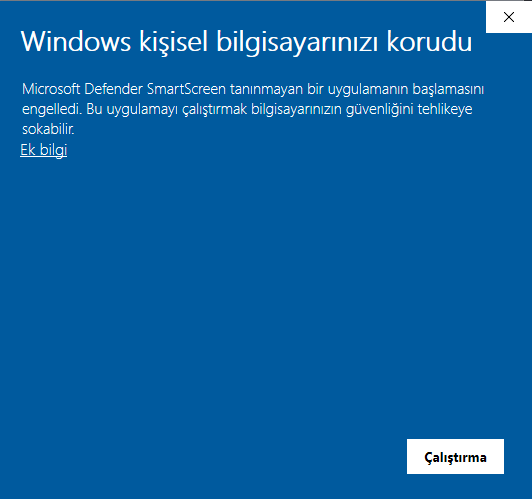
Windows may show a security warning for apps it doesn’t recognize. This is normal for new installers.
What to do:
Click the “More info” link.
This guide shows how to install the WiScanner app on your Windows PC step by step. Follow the screenshots in order to complete the setup.
Windows may show a security warning for apps it doesn’t recognize. This is normal for new installers.
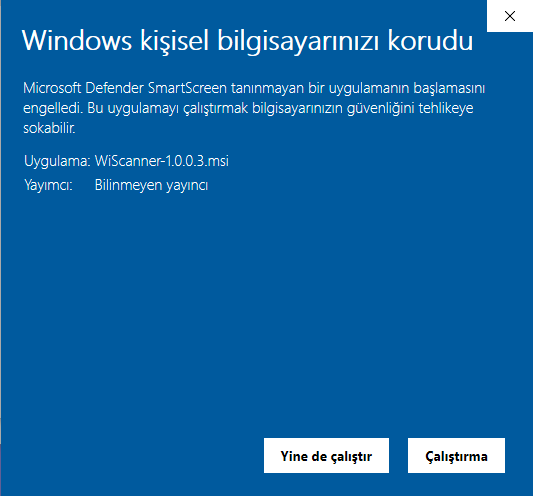
After “More info”, you may see a message that the publisher is unknown. You can safely continue if you downloaded the installer from the official WiScanner site.
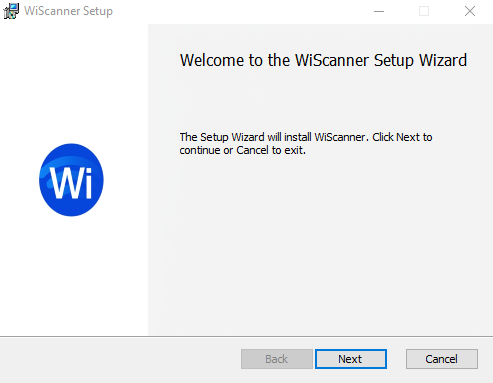
The WiScanner Setup Wizard will open. This screen welcomes you to the installation.
Read the license agreement. You must accept it to continue the installation.
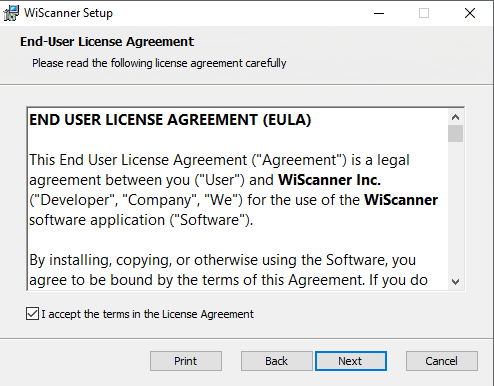
You can install WiScanner in the suggested folder or pick another one. The default location is fine for most users.
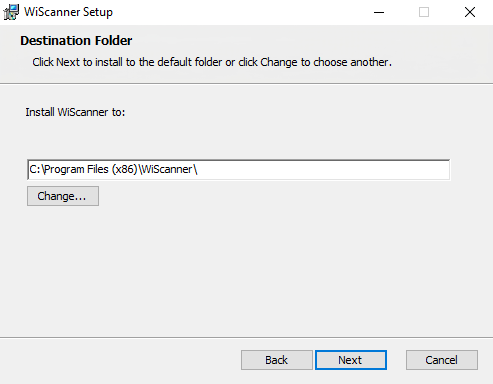
The wizard is ready to copy files to your computer. One more click starts the installation.
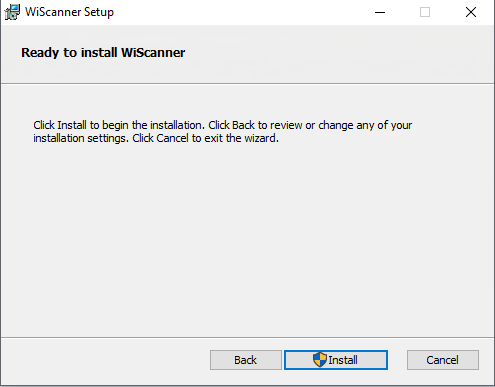
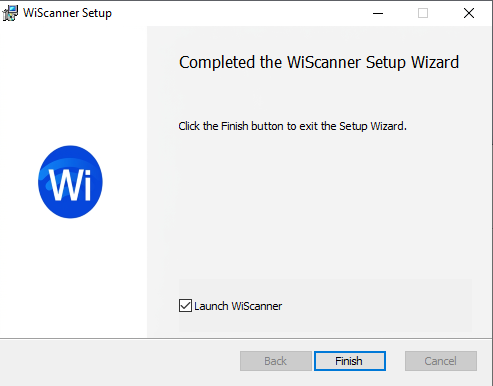
Setup has finished. You can start WiScanner right away or open it later from the Start menu.
After setup, open WiScanner on your PC and on your phone (same Wi‑Fi network) to connect and start scanning.
After installation, you can adjust where scanned data is sent and other options in the PC client.
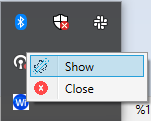
WiScanner runs in the background. Click the arrow in the system tray (near the clock), find the Wi logo in the panel that opens, then right‑click it. You will see Show and Close.
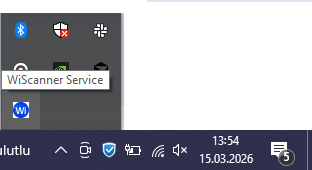
To see the WiScanner window and change settings, open it from the system tray.
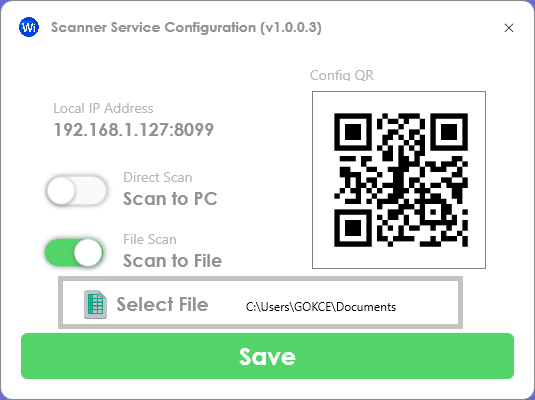
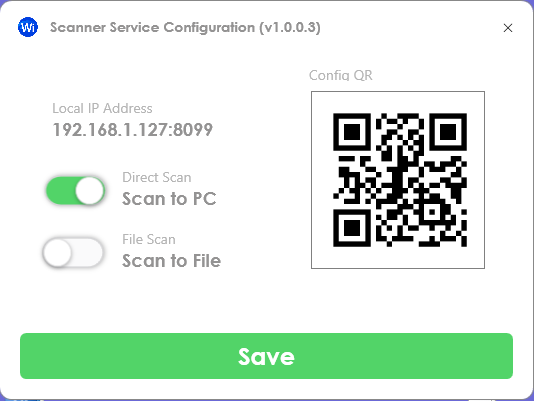
In the window you will see the Local IP address and two options: Scan to PC and Scan to File. Decide which one you want to use.
If you select Scan to File, you must choose a folder. WiScanner will create a CSV file inside that folder. The file will have a unique name based on the group name and the mobile device name.
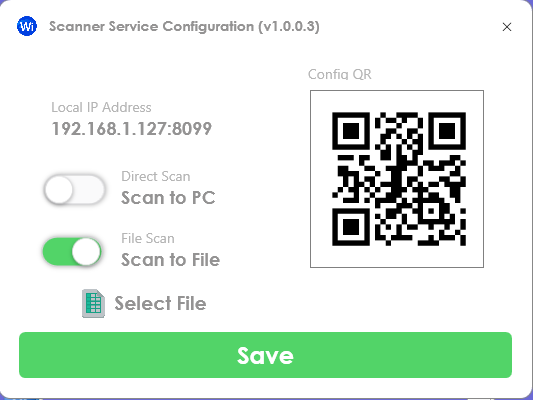
Choose the folder for your scan data. After you select it, you must click Save so the setting is applied.