Webhook
Send each scan result to your own HTTP endpoint in real time. Follow the three steps below to enable the Webhook integration and configure authentication and JSON body.
Important
If you want to receive Webhook notifications, you must enable Real Time Send in Scan Settings and select Webhook as the destination.
1. Open Settings > Integration > Webhook
On your phone, open the WiScanner app and go to Settings > Integration. In the list that appears, tap the Webhook option. This opens the Webhook configuration popup.

2. Webhook popup and Basic Authentication
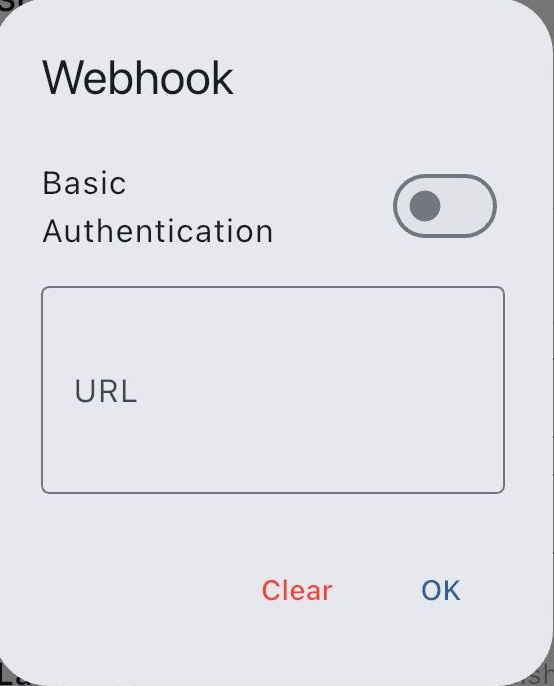
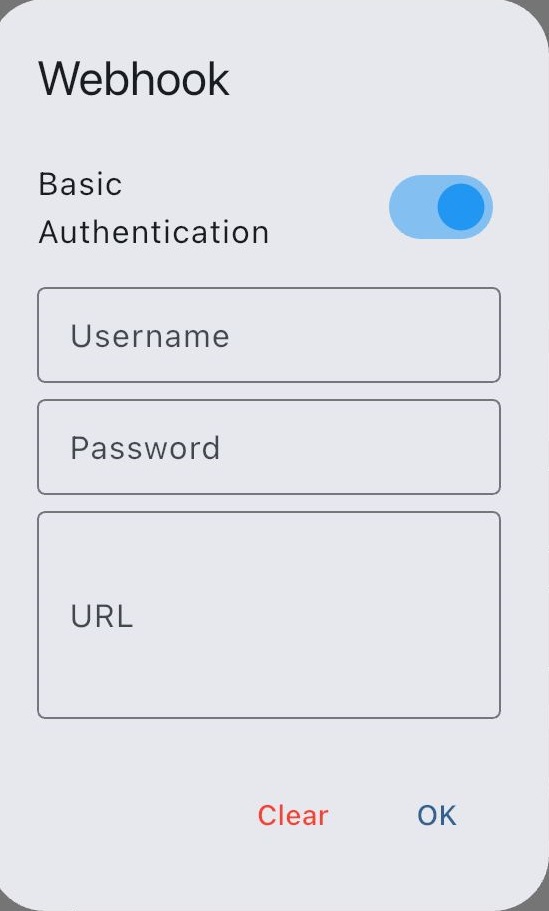
When the Webhook popup opens, you will see the target URL field at the top and an optional Authentication section below.
- Enter the full URL where the Webhook request should be sent (for example, your API endpoint).
- If your server requires Basic Authentication, enter the username and password in the Authentication section.
- To actually send these credentials, turn on the Basic Auth (or similarly named) flag and make sure it is enabled.
- When the flag is enabled, WiScanner includes the username and password as an HTTP Basic Authentication header in the Webhook request.
3. JSON body sent with each scan
For every scan, the Webhook sends an HTTP POST request with a JSON body to your server. Your backend should be prepared to receive and process this body.
The example below shows a typical JSON body structure. The exact field names may vary depending on the options your app provides, but the overall idea is similar:
{
  "GroupName": "groupname",
  "Input": "86937832",
  "Type": "barcode",
  "Name": "test",
  "PrefixValue": "value",
  "PrefixCommand": "enter",
  "SuffixValue": "value",
  "SuffixCommand": "enter"
}
Your server can read this JSON to get the scanned value (Input), the related group name
(GroupName), the type (Type) and any optional extra fields
(Name, PrefixValue, PrefixCommand, SuffixValue,
SuffixCommand) and feed them into your own workflow (for example, updating stock, creating an order
line, or logging).
In addition to the JSON body, every callback also includes an x-wusername HTTP header. Its value is
the same as the profile name configured on the phone, so you can easily identify which user or device sent the
scan.
Summary
- Step 1: Go to Settings > Integration > Webhook in the app.
- Step 2: Enter the Webhook URL, optionally add Basic Auth credentials, and enable the flag.
- Step 3: Configure your server to receive and process the JSON body sent by WiScanner.