Single Scan

Create a group for single barcode scans. Follow these four steps to create a new group and start scanning.

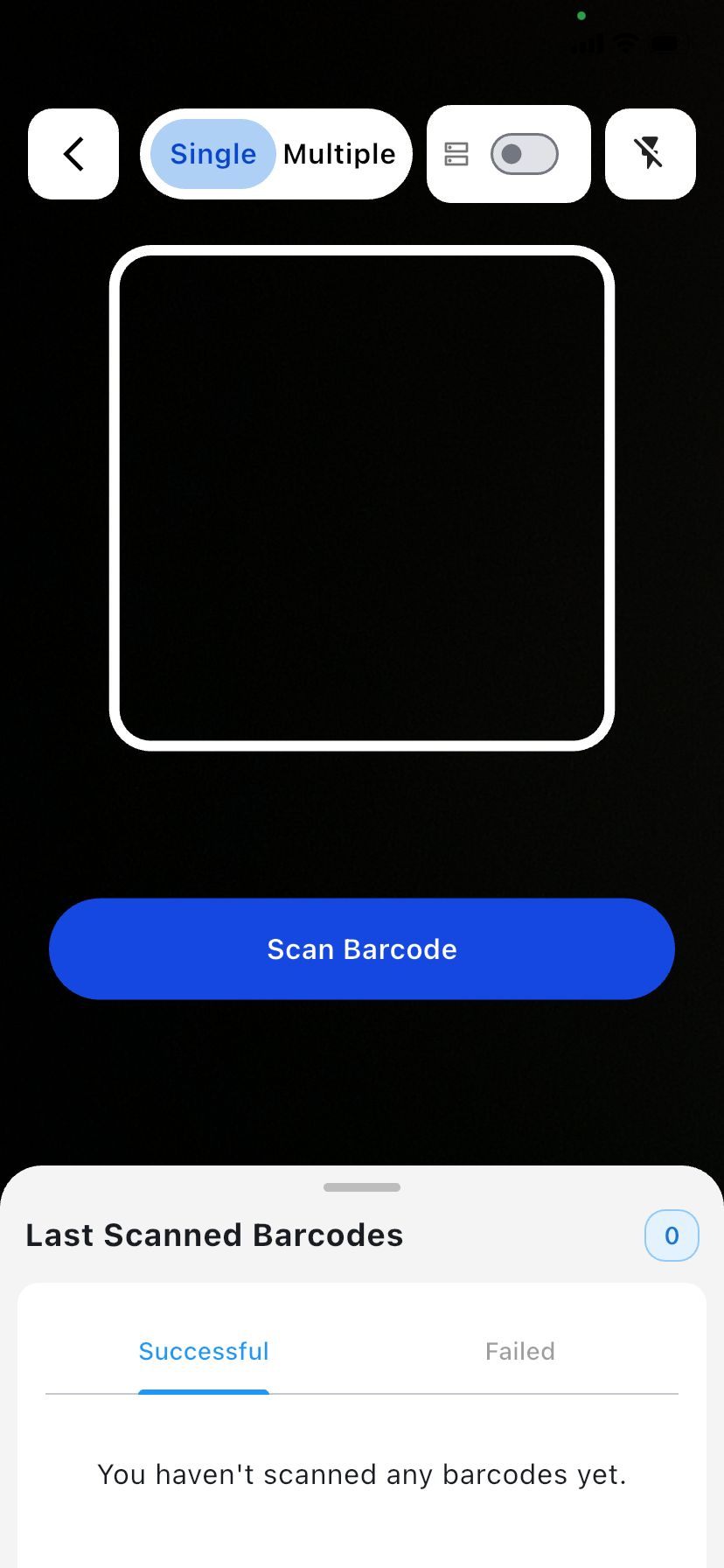
In Single Scan mode, you press the Scan Barcode button each time to read the barcode you want. If you prefer to scan several barcodes in a row without pressing the button again, switch to Multi Scan from the menu above. In Multi Scan you can scan one after another with no need to tap the button each time.

Step 1

Groups list (home screen)

The main screen shows your groups. Previously created groups appear here. When you first open the app, this list is empty.
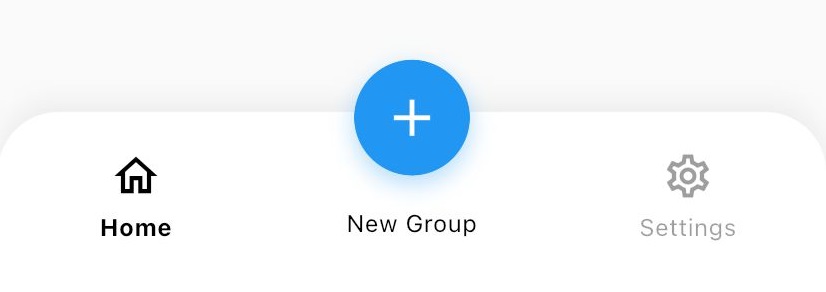
Groups list
What to do: Tap the + (New Group) button in the bottom menu to create a new group.

Step 2

Choose scan type and enter name

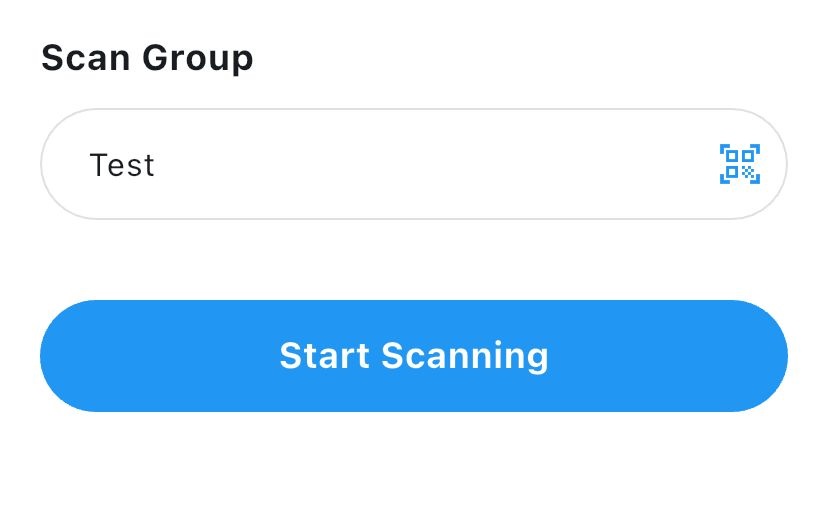
Select the type of scanning you want (e.g. barcode, QR) and enter a name for the group. You can type the name manually or scan it with the barcode reader.

Scan type and name
What to do: Pick the scan type, then enter the group name by typing or by scanning a barcode.
Step 3

Start scanning

After entering the name, tap Start scanning. The scanning screen will open. Depending on your device, the app may ask for camera permission the first time.

Start scanning
What to do: Tap Start scanning. Allow camera access if prompted.
Note: Your device may request camera permission before the scan screen opens.
Step 4

Camera ready – start scanning

The camera screen is now open. You can start scanning barcodes or QR codes. Scanned data will be sent according to the group’s settings (e.g. to your PC or to a file).

Camera scanning screen
What to do: Point the camera at a barcode or QR code to scan. You’re all set.