Select Quantity Scan group
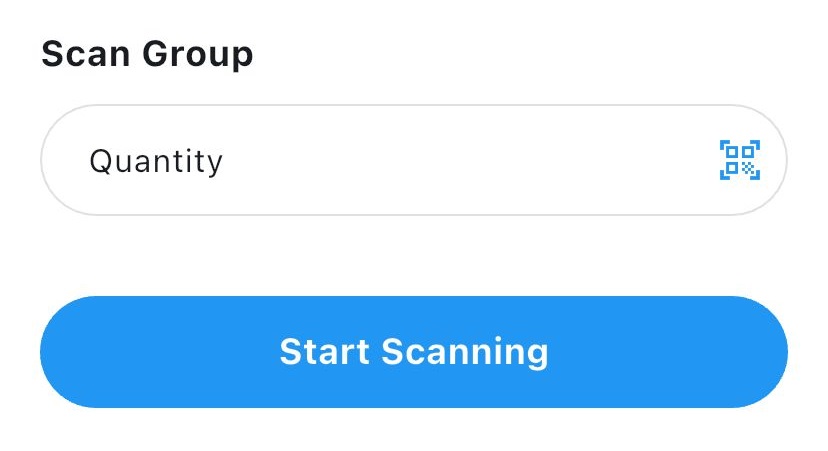
When creating a new group, choose Quantity Scan as the scan type. This group will record both a barcode and a quantity for each entry.
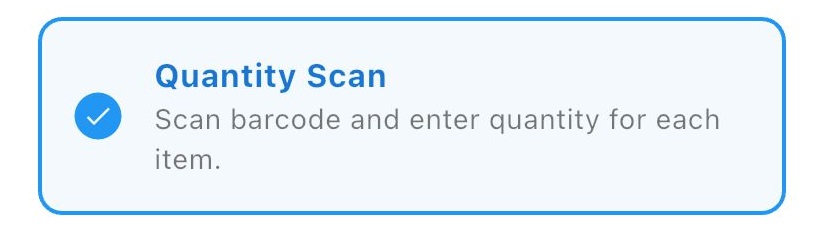
Quantity Scan accepts one barcode and one quantity per entry. You scan a barcode, then enter the quantity in the popup. The first steps (creating the group and naming it) are the same as Single Scan.
Important: For Quantity Scan groups, the Multi Scan option cannot be enabled. Each scan will always ask for a quantity after the barcode is read.
When creating a new group, choose Quantity Scan as the scan type. This group will record both a barcode and a quantity for each entry.
Enter a name for the group. You can type it manually or scan a barcode to fill the name field.
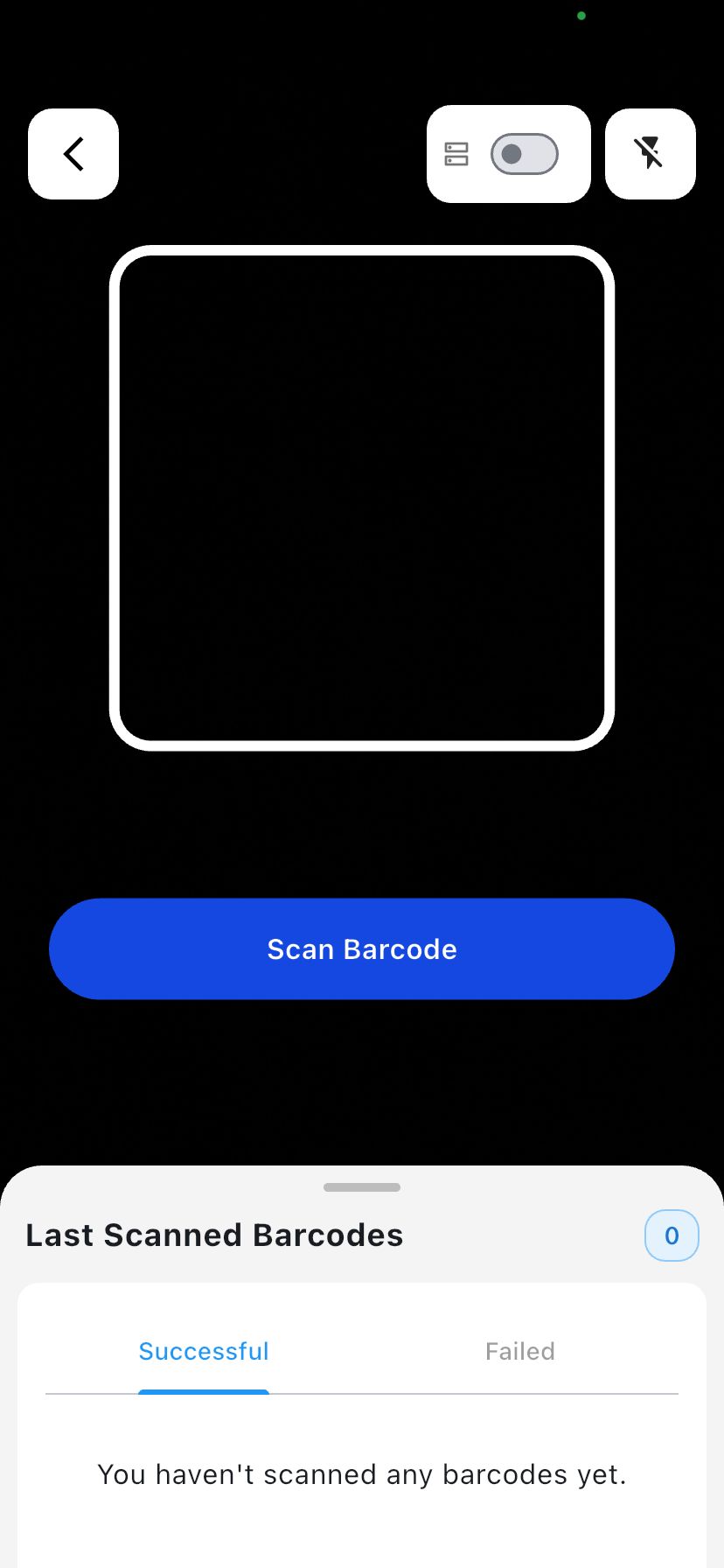
The barcode is scanned.
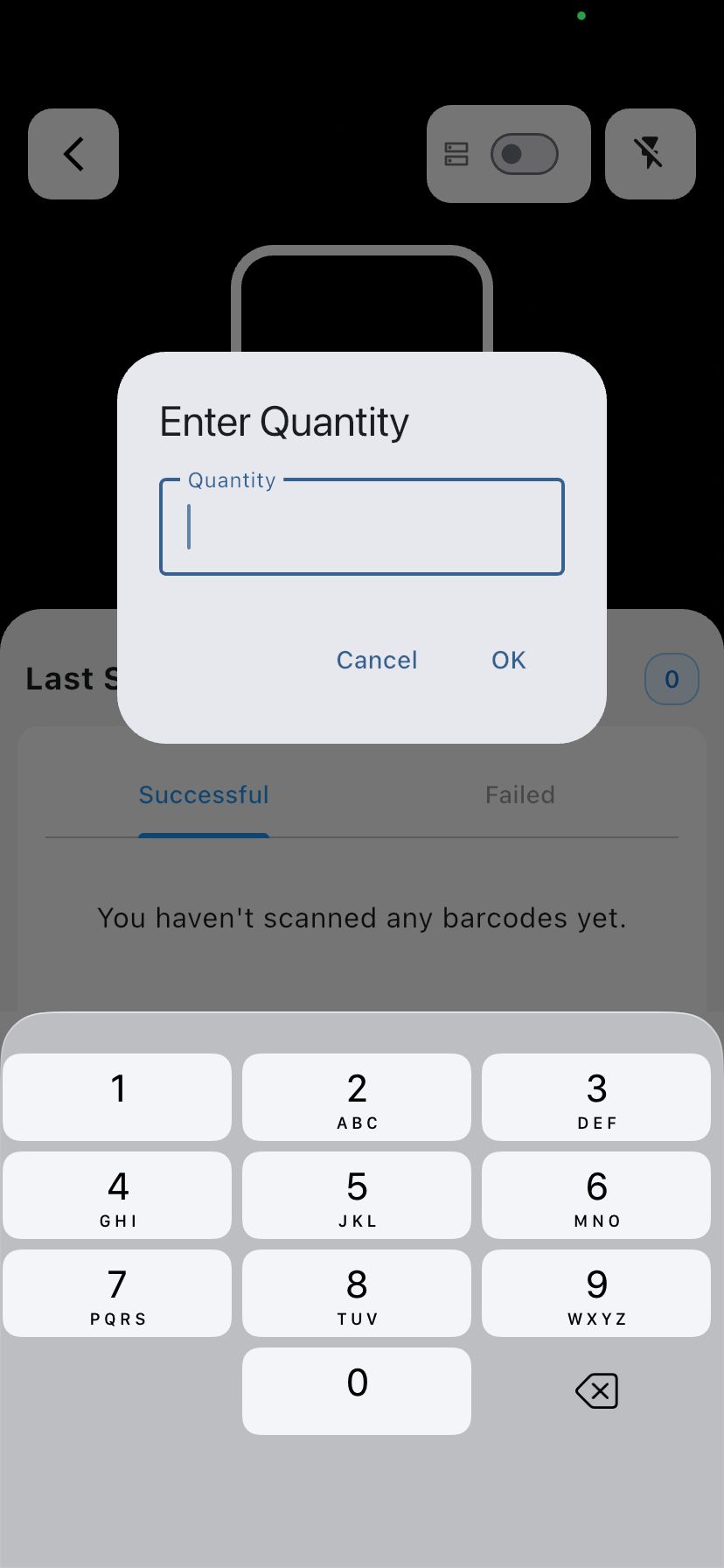
After you scan the barcode, the quantity field appears automatically. Enter the desired quantity there.
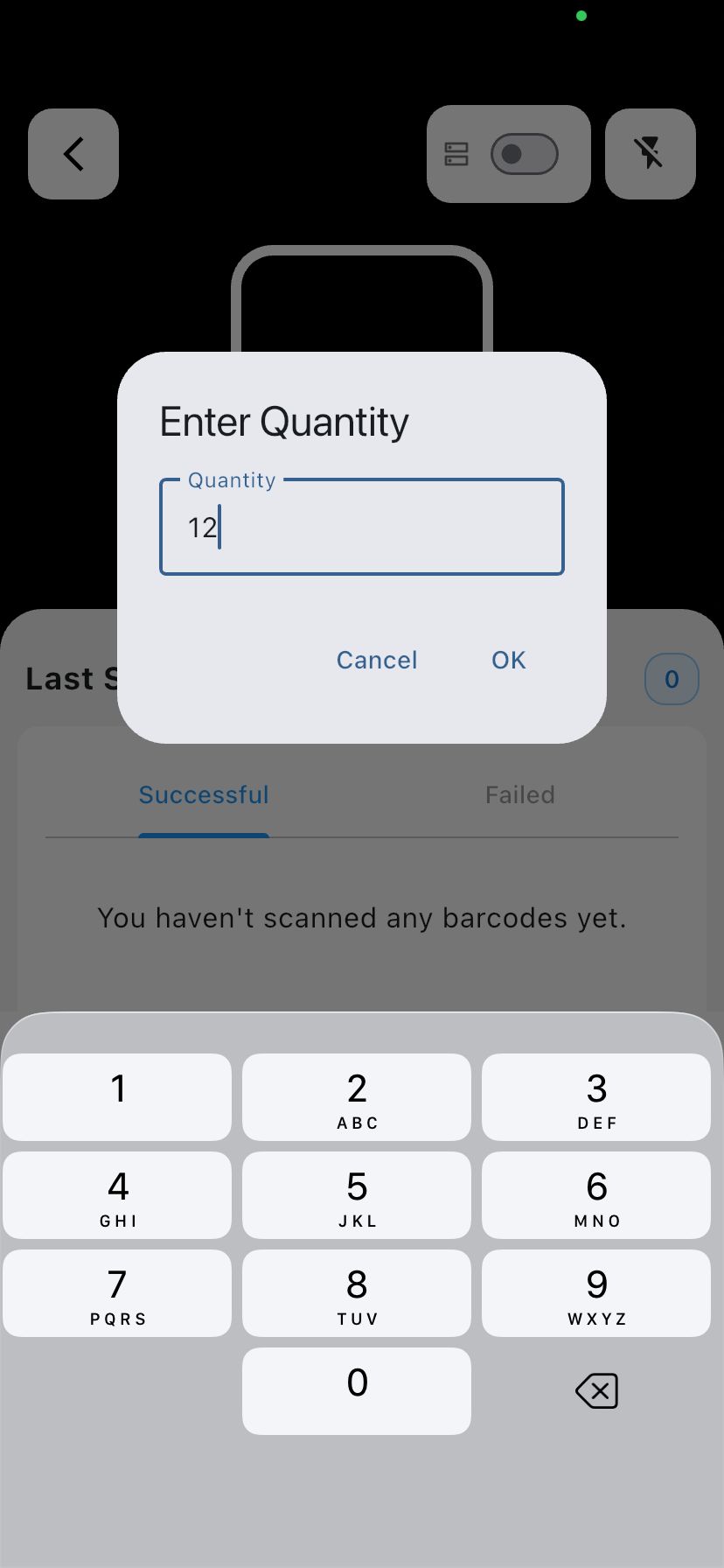
After the quantity for the barcode is entered, it is confirmed by pressing the OK button.
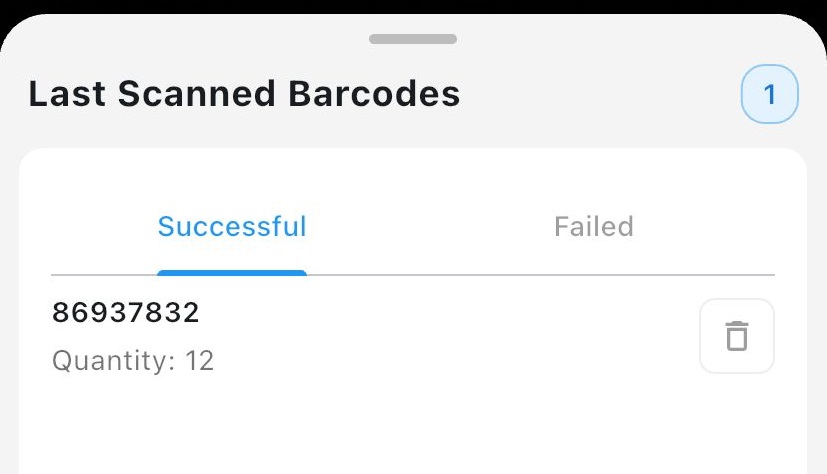
The barcode and quantity you entered are shown in the Last Scanned Barcodes section. You can repeat the process: scan another barcode, enter its quantity, and see each entry listed.