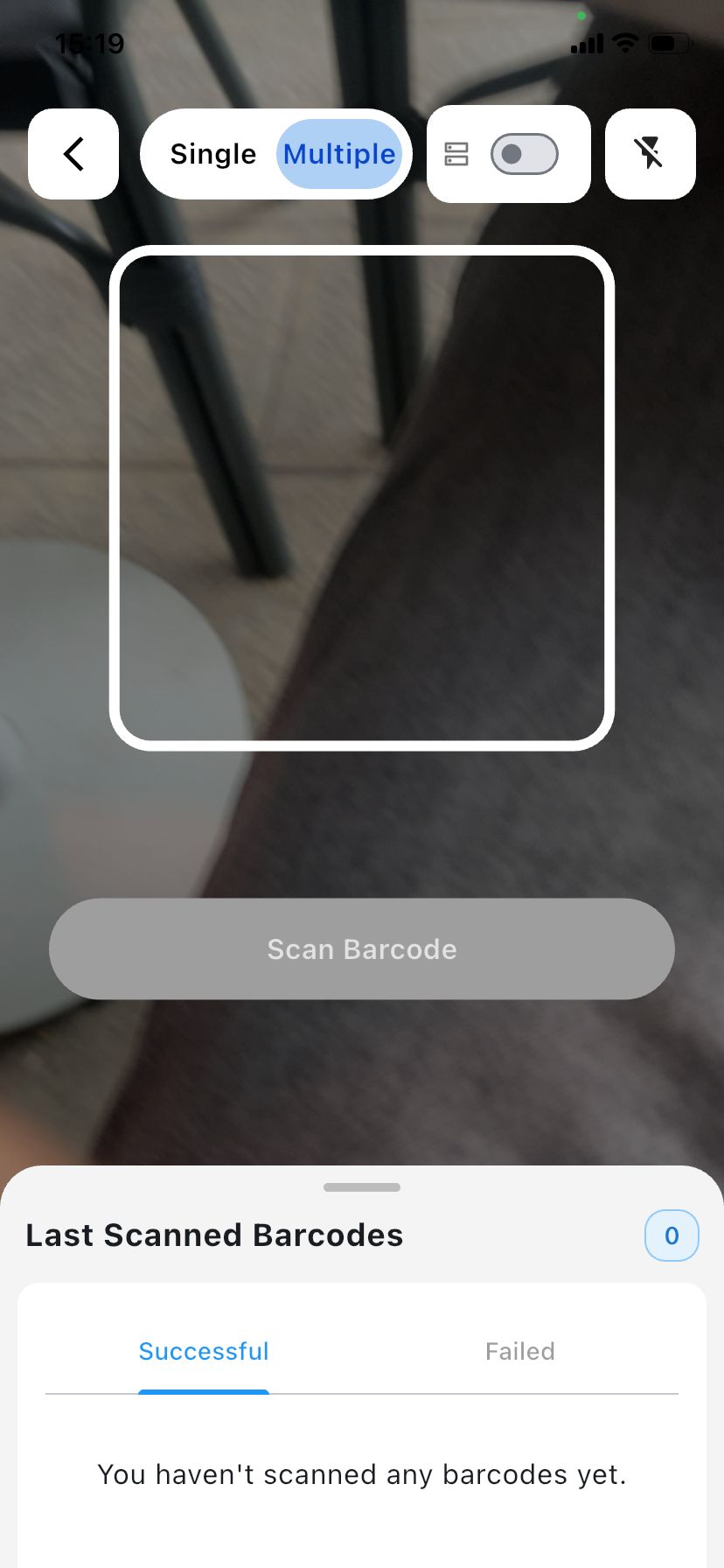
Multi Scan

Create a group for scanning multiple barcodes in a row. The flow is the same as Single Scan; the only difference is that you can scan one barcode after another without pressing the button each time.

In Multi Scan mode, the camera stays ready so you can scan several barcodes in sequence. You do not need to tap Scan Barcode again after each scan. If you prefer to scan only one barcode per tap, use Single Scan from the menu above.

Step 1

Create a group and choose Multi Scan

When creating a new group, select Multi Scan as the scan type (instead of Single). Enter the group name, then continue to the next step.

Multi Scan – choose scan type
What to do: Tap + (New Group), pick Multi Scan, and enter the group name.
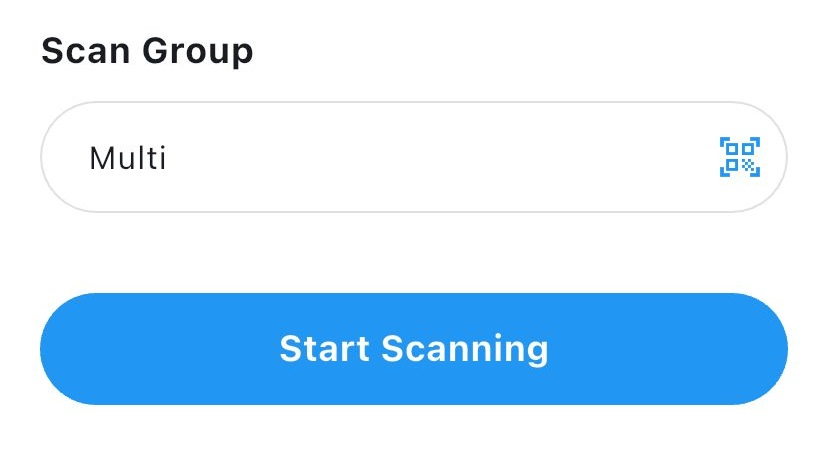
Step 2

Start scanning

Tap Start scanning to open the camera. Allow camera access if your device asks for permission.

Multi Scan – start scanning
What to do: Tap Start scanning. The camera will stay on for multiple scans.
Step 3

Scan multiple barcodes in a row

Point the camera at each barcode one after another. Each scan is sent to your PC or file automatically. You do not need to tap the button between barcodes—just move to the next one.

Multi Scan – scan in sequence
What to do: Scan the first barcode, then the next, and so on. The camera stays active for continuous scanning.