FTP/FTPS
Upload scan data directly to an FTP or FTPS server. This section explains how to open the FTP/FTPS integration screen and how to correctly fill in the connection fields.
1. Open Settings > Integration > FTP/FTPS
On your phone, open the WiScanner app and go to Settings. Then tap Integration and choose the FTP/FTPS option to open the FTP integration screen.

2. Fill in the FTP/FTPS connection details
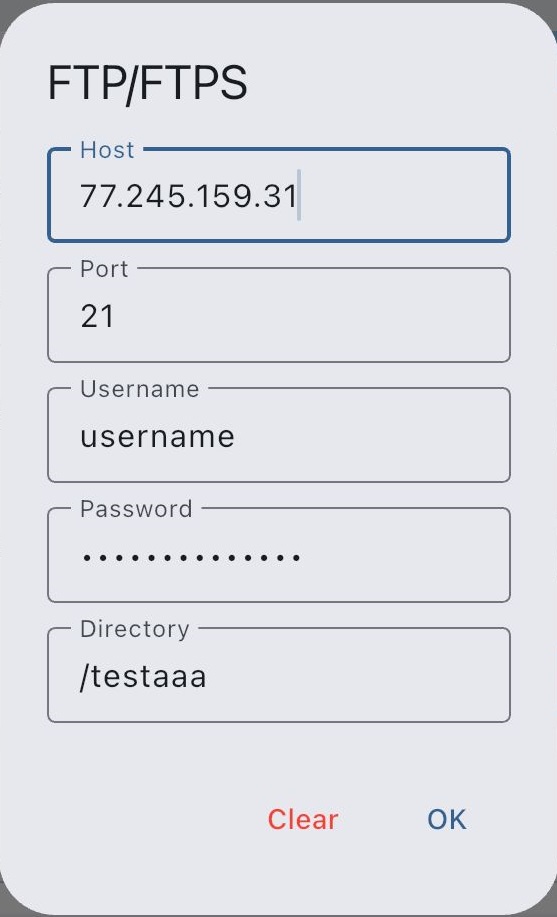
In the FTP/FTPS popup, enter the connection information provided by your server administrator. Typically you will need:
- Host / Server: The FTP or FTPS server address (for example,
ftp.example.com). - Port: The port number used by your server (often
21for FTP or990for FTPS). - Username and Password: The credentials for your FTP/FTPS account.
- Folder: The remote folder where files should be uploaded.
Important
The Folder field must always start with a leading slash and include the folder
name, for example: /{foldername}.
After saving these settings, WiScanner will upload your scan data to the configured FTP/FTPS server according to the upload rules you have defined.